Start here
From a reference image to a working website.
The method is simple: break the reference into a background, a person, text, labels and interactions. Prepare the images, ask your coding assistant to build those layers, compare the preview and refine it until the composition feels right.
This online edition follows the supplied Elomarvan Build Playbook, which documents Marvan’s portfolio build. The original PDF includes the build conversation, code recipes and example screenshots. The prompts below use placeholders so you can adapt the method to your own website.
Match the visual hierarchy, spacing, colour, framing and interaction. Rebuild the text as HTML and use your own assets. Expect a few comparison-and-fix rounds, especially on mobile.
What you need
Pick your reference images
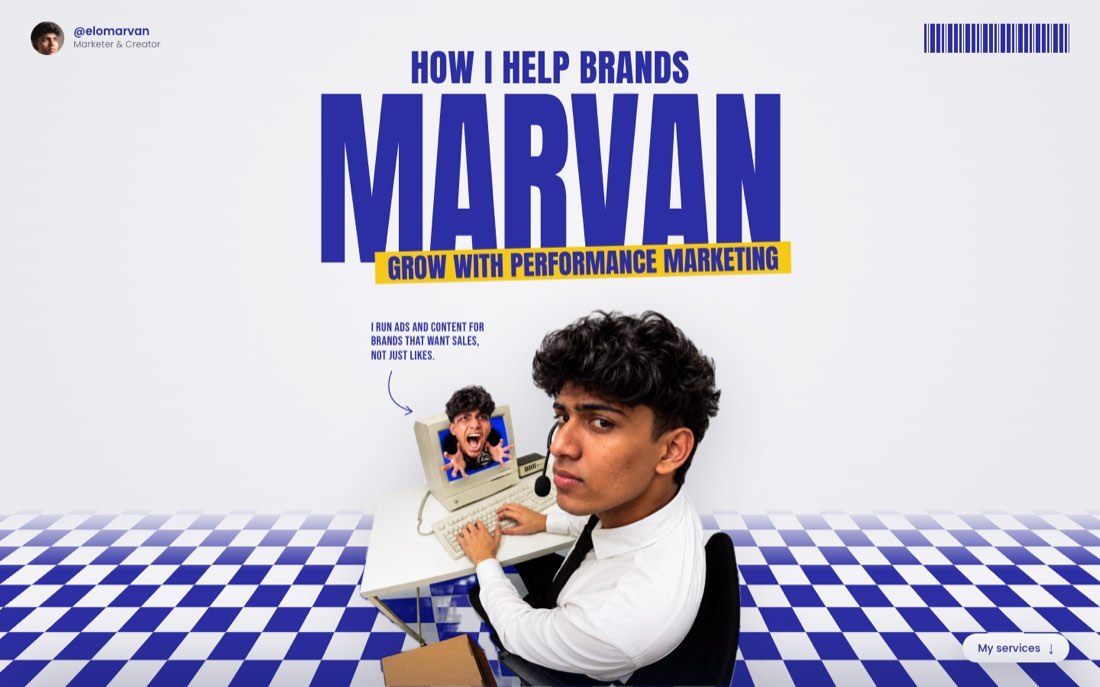
Start with one image for each section. Poster-style references work well: a person, one strong headline and a few small labels. The Elomarvan playbook uses a desk-poster hero, a chair photo for services and a tea-sipping photo for contact.
Save the largest available version and write one sentence explaining each section's job. Note the colours, type scale, composition, spacing and where the person sits. These details give your coding assistant something concrete to match.
Use these references to plan my portfolio.
Image 1: hero, who I am and what I do.
Image 2: services, what people can hire me for.
Image 3: contact, how to reach me.
Describe the layout, colours, typography and layers before building.
Check before moving on: Use references you have permission to adapt. Replace the example person's identity, branding and content with your own before launch.
Make the photos yours in ChatGPT
Upload the reference and a clear, well-lit photo of yourself. Ask for your own version of the composition, then correct one issue at a time, such as hands, glasses, hair or framing. Download the finished image at full size.
Remove baked-in text, logos, labels and buttons. The website will render editable HTML text over the image, so keeping the original lettering would make it appear twice. Keep the reference's aspect ratio.
Image 1 is a reference poster. Image 2 is a photo of me.
Create a version of this composition featuring me, using my face, hair and skin tone. Match the pose, lighting, camera angle and framing.
Remove all text, logos, handles, buttons and barcodes. Rebuild the background behind them.
Keep the same aspect ratio as image 1.
Only need to remove the text?
Remove all text, labels and buttons from this image and rebuild the background behind them. Don't change anything else.Check before moving on: Check that your face looks natural, no lettering remains and the image has the right proportions. For the playful monitor effect, the playbook adds a second version of the subject reaching out of the screen.
Start the project in Claude Code
Create an empty folder for your website and open it in Claude Code. In the desktop app, use the Code tab and select the folder. Attach your reference images and describe the sections you want.
Build the layout with placeholder copy first. Ask for all words, links and image paths in one content.ts file so later changes stay simple. Compare the first preview with the reference before adding more effects.
Build a personal portfolio website.
Image 1 is the reference for the hero. Image 2 is the contact section.
Use placeholder text for now; I will replace it later.
Build it with Next.js and Framer Motion. Match the references' composition, colours, typography, spacing and animations as closely as possible.
Put all copy, links and image paths in content.ts.
Start a local preview and check desktop and phone layouts.
Check before moving on: A close match takes iteration. Compare the layout, colours, proportions and spacing with the reference, then describe each visible difference.
Swap in your edited photos
Attach each finished image and name the section it belongs to. If the design needs the person in front of a background or headline, use a transparent cutout. The original build used the Mac's subject-lift workflow; another background-removal tool can serve the same purpose.
Place labels as percentages of a shared image frame so they stay attached to the right part of the composition. Give mobile its own positions where necessary. Ask the assistant to remove any leftover text and soften awkward cropped edges.
Use this edited image for the hero.
Keep the subject on a separate transparent layer if needed.
Place the headline, highlight bar and labels as HTML, not as baked-in image text.
Anchor labels to the image frame and adjust their positions for phones.
Check before moving on: The face should stay clear, labels should align, and text should remain readable on both desktop and mobile.
Add services and contact sections
Send the next reference and your edited photo together. Say where the section goes, what it contains and what every link should do. In the playbook, service names sit around a seated portrait and each opens a dedicated service page.
The contact section uses a photo, a clear call to action and real social links. Add smooth section navigation and the curtain transition only after the static layout works.
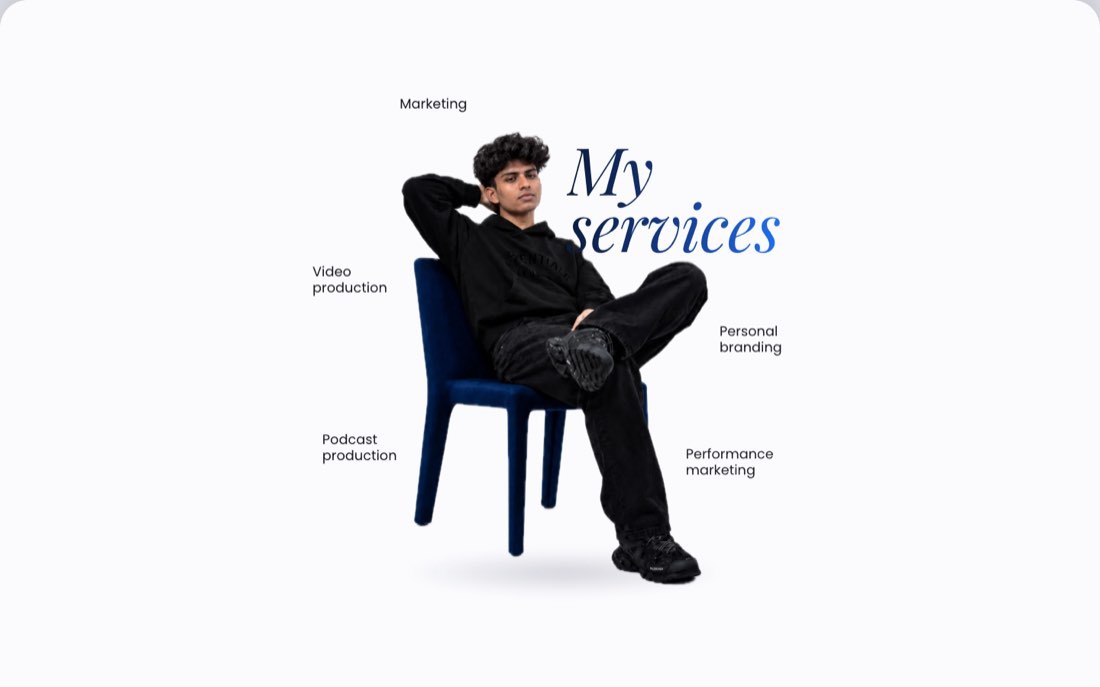
Use this as the second section and move the current contact section to third.
Place these services around the person: Marketing, Video production, Podcast production, Personal branding, Performance marketing.
Make each service link to its own landing page.
Add smooth scrolling from the hero to services and a curtain effect where services slides over the hero.
Use my own service names and contact details before launch.
Check before moving on: Every service label needs a working destination. Test the contact button, social handles and section navigation.
Replace the words and links
Update the role, headline, supporting note, services and contact details in content.ts. Be specific about the work you want to attract. The example shifts from a generic design message to performance marketing.
Use your own handles and full URLs. For WhatsApp, wa.me links use an international number with the country code and digits only. Keep this separate from the visible, formatted phone number.
Replace the placeholder content with my details.
Name: [your name]
Role: [your role]
Headline: [the outcome you help people achieve]
Supporting note: [one clear sentence]
Instagram: [your full profile URL]
Contact CTA: [your destination URL]
Update content.ts and confirm no example names or links remain.
A simple content file
export const profile = {
  name: "Your name",
  role: "Your role",
  instagram: "https://instagram.com/yourhandle",
  contact: "https://wa.me/91YOURNUMBER",
};

export const hero = {
  kicker: "HOW I HELP BRANDS",
  title: "YOUR NAME",
  highlight: "THE RESULT YOU HELP PEOPLE ACHIEVE",
  note: "One clear sentence about your work.",
  image: "/hero.png",
};
Check before moving on: Review every visible claim and link. Search for placeholder names, example phone numbers and unfinished text before publishing.
Add the animation kit
Ask for motion by its visible behaviour: letters rising into view, a highlight wiping across, a photo springing into place or a section sliding over another. The recipes below are the motion vocabulary used in the playbook.
Apply effects one at a time. Keep important text available without animation, test touch devices and respect reduced-motion preferences. Decorative parallax and floating effects should not make content harder to read.
Add the poster motion kit: staggered headline letters, a wipe-in highlight, a spring photo entrance, scroll reveals and a services curtain transition.
Use subtle pointer parallax only on devices with a fine pointer.
Respect reduced motion, disable decorative loops and parallax when requested, and keep all content readable without motion.
Check before moving on: If a reveal never triggers, observe a visible parent rather than a clipped, hidden child. Leave room for italic letters and descenders such as y.
Check every screen size
The playbook checks 1440 × 900, 1280 × 720, 1000 × 570 and 390 × 844. Short laptop screens often expose problems that a wide desktop preview misses.
Compare screenshots against the reference. Look for labels beyond the screen, clipped headings, notes touching highlight bars and photos becoming too small. Fix the layout at the breakpoint where the issue appears.
Take screenshots at 1440x900, 1280x720, 1000x570 and 390x844.
Fix overlaps, clipped text, horizontal overflow and labels outside the screen.
Check keyboard navigation, visible focus, colour contrast, descriptive image alt text and reduced motion.
Verify every service and contact link.
Check before moving on: Open the preview on a real phone too. A responsive screenshot does not prove that scrolling and touch interactions feel right.
Save the project to GitHub
Sign in to your own GitHub account, then ask the coding assistant to create a private repository and push the project. Review the changes before the first commit.
Confirm the repository's visibility and make sure .env files, credentials and unrelated personal files are excluded. Give your project its own repository name instead of reusing the example.
Create a private GitHub repository called [my-portfolio].
Check that secrets, .env files and generated build files are excluded.
Commit the reviewed website source and push it.
Give me the repository URL and confirm its visibility.
Check before moving on: Visit the repository and check that it contains the expected source files and uses the intended visibility setting.
Put it live on Vercel
Sign in to Vercel yourself, import the GitHub repository and review the Next.js build settings. You can also ask your coding assistant to guide a CLI deployment after you authenticate.
Choose your own project name. The requested vercel.app address depends on availability, and the deployment must finish successfully before the website is live. Inspect the returned URL rather than assuming the example address is yours.
Deploy this project to my Vercel account and connect it to the GitHub repository.
Use [my-project-name] if it is available.
Run the production build, resolve errors and confirm the deployment succeeds.
Give me the actual public URL and check that visitors can open it without signing in.
Check before moving on: Open the production URL in a private browser window and on your phone. Verify images, service pages, navigation and contact links.
Make changes after launch
Use a screenshot and one precise request: add space under the hero note, move a service label or replace a photo. Review the change in preview, then commit and push the approved source.
With the Vercel Git integration configured, pushes to the production branch normally create production deployments. Wait for the deployment result and verify the live page; build time varies.
Make this change: [describe the difference and attach a screenshot].
Show it in preview at desktop and phone sizes.
Run the relevant checks, then commit and push the reviewed change.
Confirm the production deployment succeeds and verify the final URL.
Check before moving on: Use the loop: describe → preview → review → commit and push → verify production.
The motion vocabulary
10 animation recipes from the build.
These are component-level snippets, not a complete application. Motion hooks belong in a client component. Ask your coding assistant to add the imports, refs and motion values needed for each recipe.
Letters rise from below
Split the headline into letters, hide overflow on each wrapper and stagger the upward movement.
<span style={{ display: "inline-block", overflow: "hidden" }}>
  <motion.span
    style={{ display: "inline-block" }}
    initial={{ y: "105%" }} animate={{ y: "0%" }}
    transition={{ duration: 0.9, ease: [0.22, 1, 0.36, 1],
      delay: 0.4 + i * 0.07 }}
  >{letter}</motion.span>
</span>
Wipe in a highlight bar
Reveal the highlight from left to right, with a small rotation for the poster feel.
<motion.div
  initial={{ clipPath: "inset(0 100% 0 0)", rotate: -6 }}
  animate={{ clipPath: "inset(0 0% 0 0)", rotate: -1.5 }}
  transition={{ duration: 0.75, delay: 1.05 }}
/>
Draw a hand-drawn arrow
Animate an SVG path's length from zero to one.
<motion.path
  d="M16 4 C 0 46, 10 84, 64 98"
  initial={{ pathLength: 0 }} animate={{ pathLength: 1 }}
  transition={{ duration: 0.8, delay: 1.6 }}
/>
Spring a photo into place
A spring gives the entrance a small overshoot before it settles.
<motion.img src="/hero.png" alt="Your descriptive alt text"
  initial={{ y: 140, scale: 0.9, opacity: 0 }}
  animate={{ y: 0, scale: 1, opacity: 1 }}
  transition={{ type: "spring", stiffness: 90,
    damping: 16, delay: 0.75 }}
/>
Follow the mouse
Smooth a normalised pointer position with a spring, then move layers by different amounts. Disable this for touch and reduced motion.
const px = useMotionValue(0);
const sx = useSpring(px, { stiffness: 70, damping: 18 });
const photoX = useTransform(sx, (v) => v * -18);
// On the section:
onPointerMove={(e) => {
  const r = e.currentTarget.getBoundingClientRect();
  px.set(((e.clientX - r.left) / r.width) * 2 - 1);
}}
// On the photo layer:
<motion.div style={{ x: photoX }} />
Move with scroll
Pin the hero with position: sticky; top: 0. Let the next section cover it while the hero shrinks and dims.
const { scrollYProgress } = useScroll({
  target: ref, offset: ["start start", "end start"]
});
const scale = useTransform(scrollYProgress, [0, 1], [1, 0.92]);
const dim = useTransform(scrollYProgress, [0, 1], [0, 0.55]);
<motion.section ref={ref} style={{ scale }}>
  {/* Hero content */}
  <motion.div style={{ opacity: dim }} />
</motion.section>
Reveal when scrolled into view
Trigger from the parent when letters begin inside clipping boxes, and pass the state down through variants.
<motion.h2 initial="hidden" whileInView="shown"
  viewport={{ once: true }}>
  <span style={{ overflow: "hidden", display: "block" }}>
    <motion.span variants={{
      hidden: { y: "115%" }, shown: { y: "0%" }
    }}>My services</motion.span>
  </span>
</motion.h2>
Gently float service labels
Vary each label's duration so they do not move together. Disable repeating motion when reduced motion is requested.
<motion.div
  animate={{ y: [0, -5, 0] }}
  transition={{ duration: 3.2 + i * 0.45,
    repeat: Infinity, ease: "easeInOut" }}
/>
Make a magnetic button
Move the button slightly toward the pointer, then spring back when the pointer leaves.
onPointerMove={(e) => {
  const r = e.currentTarget.getBoundingClientRect();
  mx.set((e.clientX - (r.left + r.width / 2)) * 0.35);
  my.set((e.clientY - (r.top + r.height / 2)) * 0.35);
}}
onPointerLeave={() => { mx.set(0); my.set(0); }}
// Bind the spring-smoothed values to style={{ x, y }}.
Smooth scrolling with Lenis
Wrap the site once. Use the Lenis instance to scroll to a section; keep normal anchors as a fallback.
import { ReactLenis, useLenis } from "lenis/react";
<ReactLenis root options={{ lerp: 0.085, smoothWheel: true }}>
  {children}
</ReactLenis>
// Inside a child component:
const lenis = useLenis();
lenis?.scrollTo("#services", { duration: 1.6 });
Respect reduced motion
Wrap Motion components in MotionConfig and use useReducedMotion to switch off custom parallax and repeating effects. Keep content visible when an entrance is disabled.
import { MotionConfig, useReducedMotion } from "framer-motion";

// Wrap the application:
<MotionConfig reducedMotion="user">{children}</MotionConfig>

// In a component with decorative movement:
const reduceMotion = useReducedMotion();
// Use reduceMotion to disable loops and parallax.
Reuse the workflow
Save the motion kit as a Claude skill.
Create a folder named poster-motion inside ~/.claude/skills/ and save the following as SKILL.md. On your next project, ask Claude to use the poster-motion skill. The text is an optional template for readers to save in their own environment.
---
name: poster-motion
description: Motion recipes for turning a poster-style reference into an animated Next.js section. Use when rebuilding a reference layout with entrance, scroll and hover effects.
---
# Poster motion kit
Build with Next.js App Router and Framer Motion.
Keep copy, links and image paths in content.ts.

## Layout
- Treat each reference as one section.
- Separate the subject from the background when layering requires it.
- Anchor labels to the photo frame with percentage positions.
- Give phones their own positions when necessary.
- Check 1440x900, 1280x720, 1000x570 and 390x844.

## Motion
- Headline: y 105% to 0, stagger 0.07s.
- Highlight: clipPath inset(0 100% 0 0) to inset(0 0% 0 0).
- Arrow: SVG pathLength 0 to 1.
- Photo: spring, stiffness 90, damping 16.
- Parallax: useMotionValue, useSpring, useTransform.
- Curtain: sticky hero, next section covers it; scale to 0.92.
- Reveal: observe the visible parent and use child variants.
- Float: y [0,-5,0], different durations.
- Button: pointer offset times 0.35 through a spring.
- Smooth scroll: one ReactLenis root and section anchors.

## Accessibility and checks
- Use MotionConfig reducedMotion="user".
- Explicitly disable parallax and decorative loops for reduced motion.
- Leave space for descenders and italic overhangs.
- Keep every link reachable by keyboard.
- Check the production URL after deployment.
Common problems, practical fixes.
A note touches the highlight bar
Reduce the photo slightly and add space below the headline.
The y in My looks clipped
Add bottom padding to the gradient text or its mask, then compensate with margin if needed.
A heading never appears
Move the in-view trigger to a visible parent and use variants for the hidden text.
Labels run beyond a phone screen
Use mobile-specific positions or move labels into the normal document flow.
A photo has hard crop edges
Adjust scale and placement so the crop sits outside the visible frame; soften edges if appropriate.
The portrait is tiny on a short laptop
Review minimum section heights and size the composition for the available viewport.
Know where things live.
content.ts- Your words, links and image paths. Start here for most content changes.
public/- Your hero, services, contact and avatar images.
components/Hero.tsx- The first section and its motion.
components/Services.tsx- The services composition and clickable labels.
components/Contact.tsx- The contact portrait, call to action and social links.
components/ServiceLanding.tsx- A shared layout for the individual service pages.
app/globals.css- Colours, type, spacing and responsive positions.
Your offline build companion
Keep the whole playbook.
Download the original 16-page PDF, including the reference screenshots, prompts, motion code and the real build conversation.
Download the free PDF PDF · 16 pages · 767 KB · No sign-up requiredSource and further reading
- Elomarvan Build Playbook: the supplied source for the project workflow, examples and motion kit.
- Claude Code documentation: current ways to access the coding assistant.
- Motion accessibility guide: reduced-motion configuration and custom controls.
- Vercel Git deployments: connecting a repository and publishing changes.
Interface labels, account requirements and hosting behaviour may change. Use the current product documentation when a step differs from the original playbook.